Gantit
Integrated Task Planner
“Gantit” is a complex system for creating tasks that are structured into sub-stages. The tasks are organized based on the executing entity or the entity responsible for planning them. The goal is to allow each user to add and edit such tasks, and to apply advanced filtering in order to view all tasks according to those filters.
main user
Users aged 18–30 and 40–55 who are familiar with the organization but have not worked with such a system before, and are either new or returning users.
My role
I defined the task structure, ownership model, and filtering experience in Gantit, ensuring users can create, break down, and navigate complex staged tasks with clarity and speed.
user story
Gantit is a system for creating tasks structured into sub-stages, organized by responsible or planning entities, with advanced filtering to efficiently manage and view task execution.
KPIs
- Task creation time < 20s
- 60% weekly active users
- 55% tasks with sub-stages
- 75% filter usage rate
Challenge
Designing a system that supports deeply structured, multi-stage tasks with entity-based ownership while keeping filtering, navigation, and updates simple and fast at scale.
Solution
Clear hierarchical task model with sub-stages, strict ownership assignment, and a powerful but lightweight filtering system with progressive disclosure to avoid overload.
My Design Process
Research
Define
Ideate
Prototype
Final UI
Research
User interviews with planners and executors, workflow mapping of task breakdown processes, usability testing on filtering and hierarchy navigation, and analysis of competing task management systems.
Competitors
Jira – advanced issue and project tracking tool used mainly in software teams with strong workflow customization.
Monday – work operating system for managing projects with highly visual dashboards and automation.
Persona

Ethan Dahan
Age: 20
A 20-year-old operations coordinator in a fast-moving startup, responsible for organizing cross-team execution plans and tracking progress across multiple stakeholders. He works across planning and execution layers, often handling fragmented information from different people and tools. He needs a system that lets him quickly break down complex work into structured stages, assign responsibility clearly, and filter tasks by owner, status, or priority without losing overview. He is highly efficiency-driven, expects minimal setup time, and becomes frustrated when systems are rigid, cluttered, or require too many clicks to understand what is happening across teams.
UX Design
User flow
The user logs in, creates a task, assigns it to a responsible or planning entity, breaks it into sub-stages, and saves it; they then use filters or search to view tasks by owner, stage, or status, and continuously update progress as work moves through execution stages.
Interface Solutions
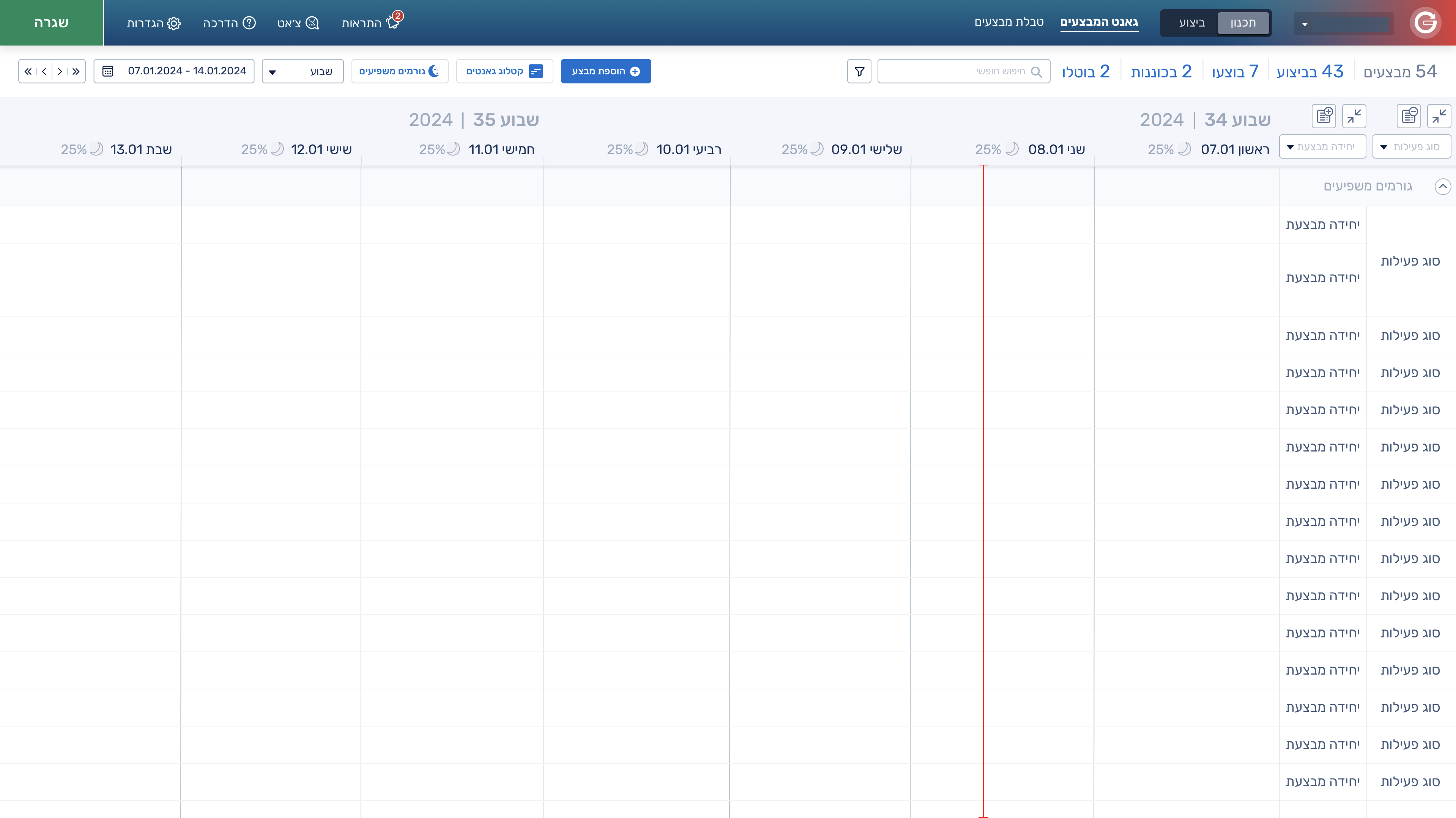
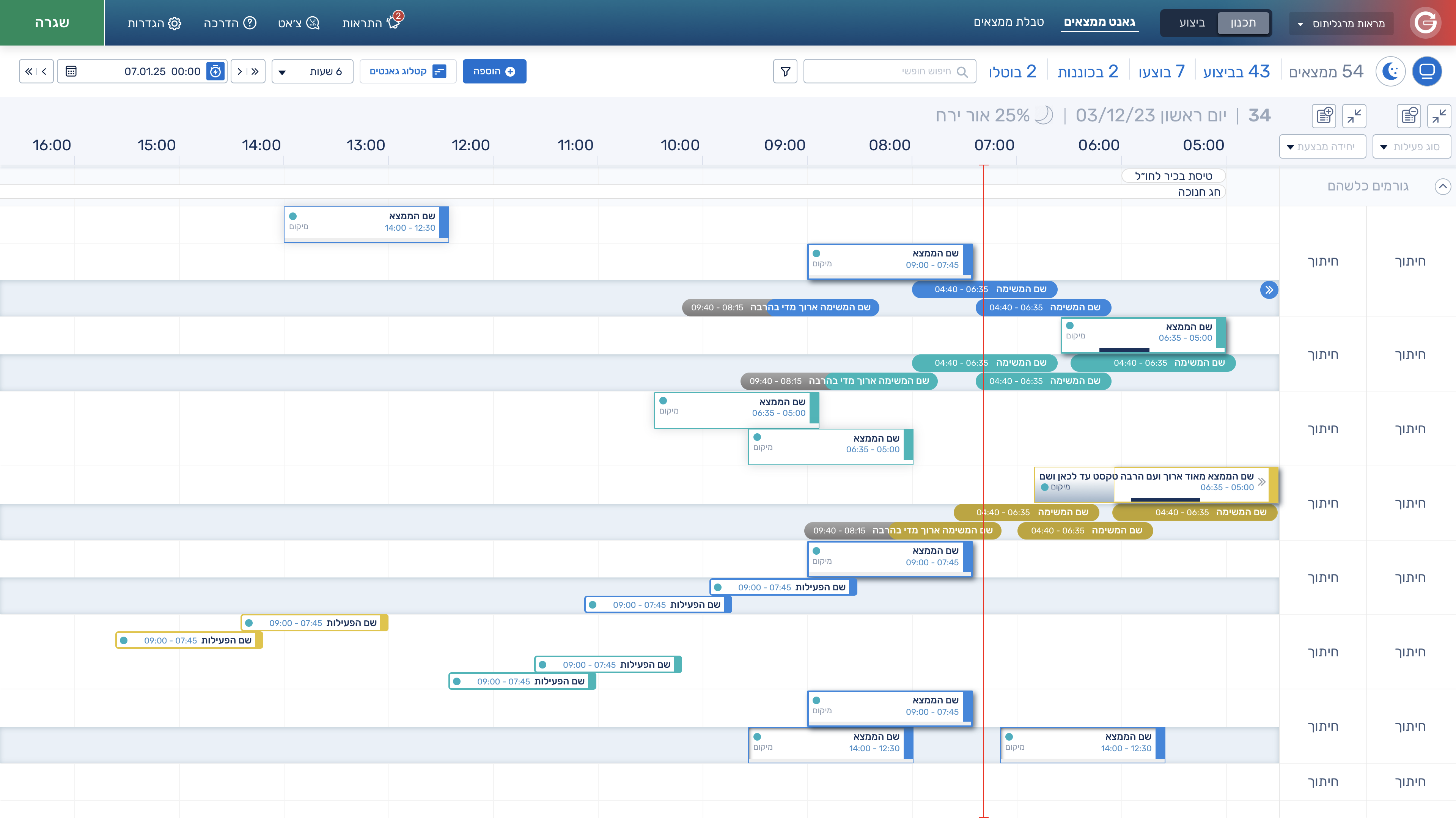
In this system, I had the challenge of creating a Gantt system from scratch. The system is very complex, yet it still needed to feel intuitive and easy to read. Because of that, I wanted the Gantt view itself to stay as clean as possible, despite all the tools and functionalities I designed around it.
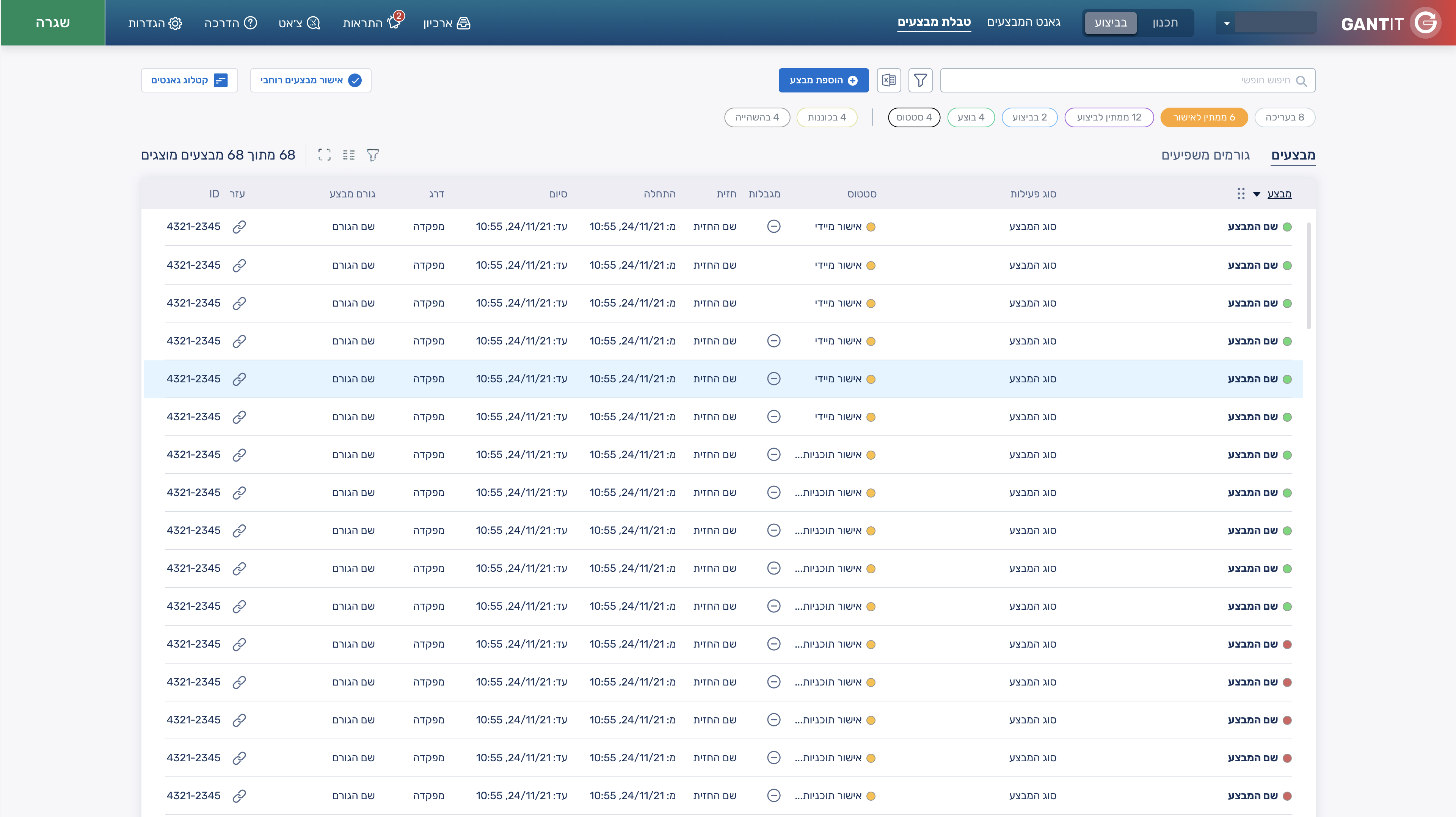
In the table mockup, the challenge was to recreate the same tasks from the Gantt view in a table format that could display more information for the user, while still providing the same tools and capabilities available in the Gantt view.
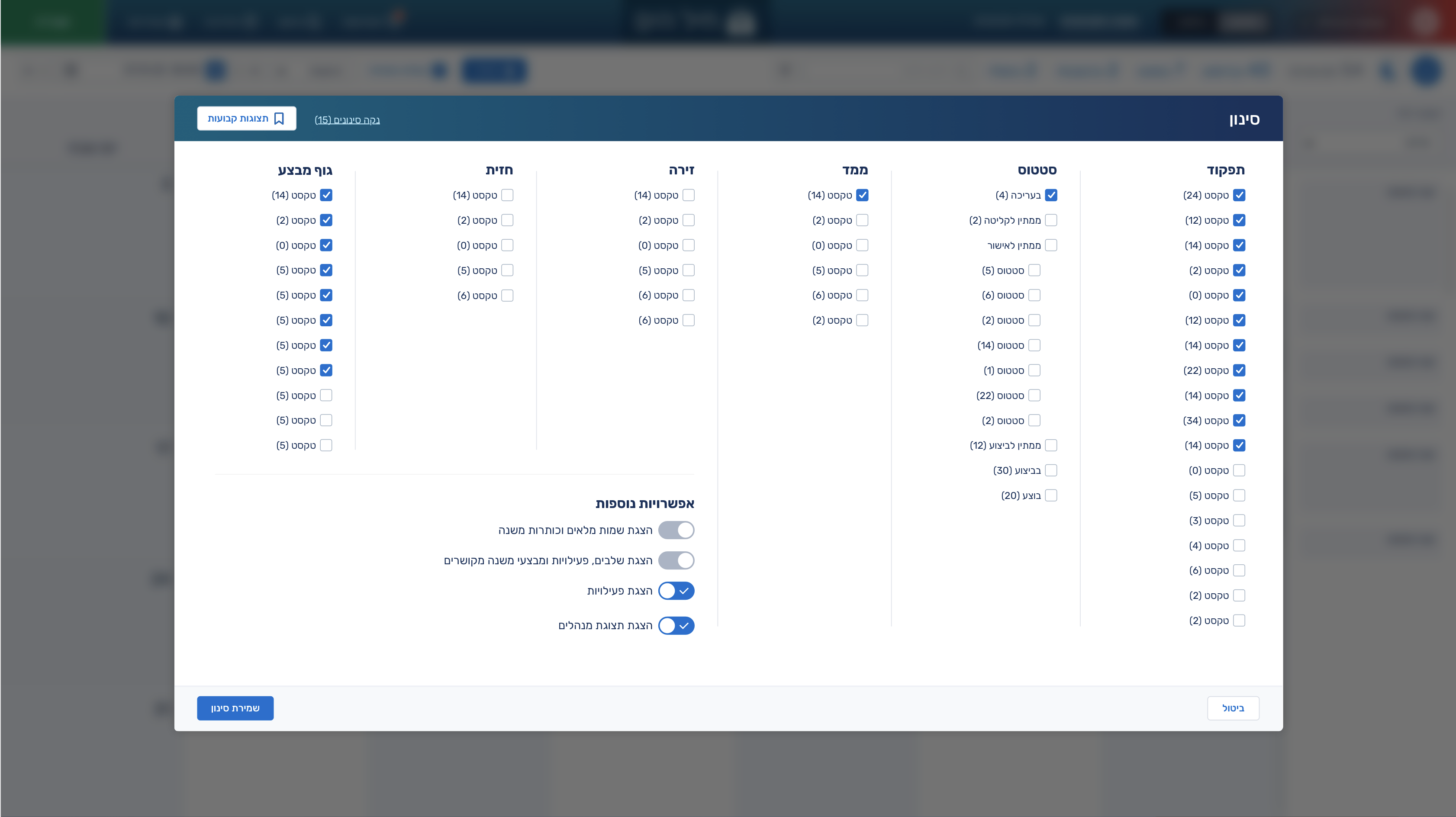
In the filtering screen, the challenge was to present a large number of filtering options while still keeping the experience as intuitive and clean as possible, despite the complexity and amount of information.
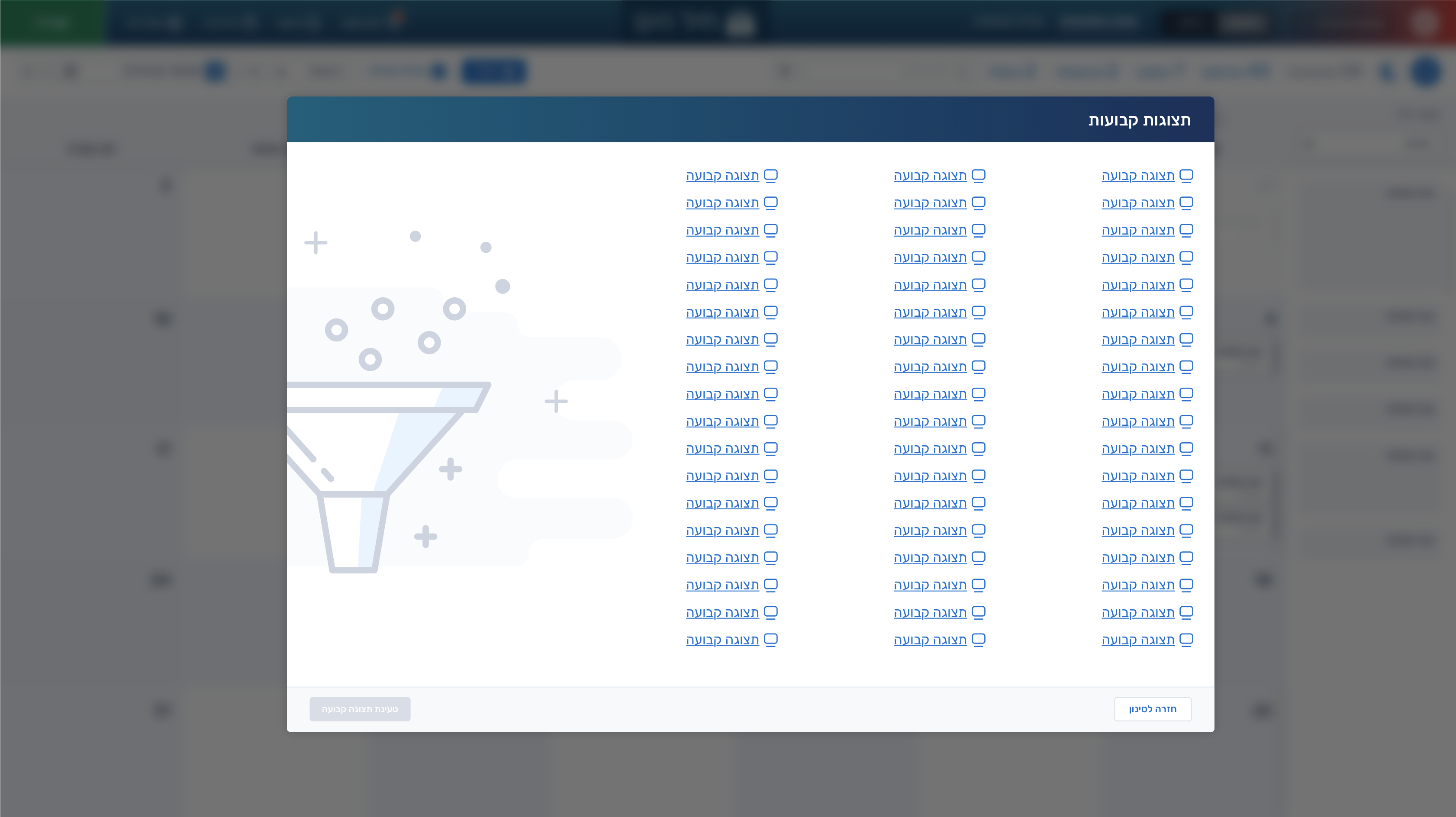
In this mockup, I created a more advanced filtering system using templates. This allowed users to combine multiple filters together, save them as a template, and easily reuse that template later.
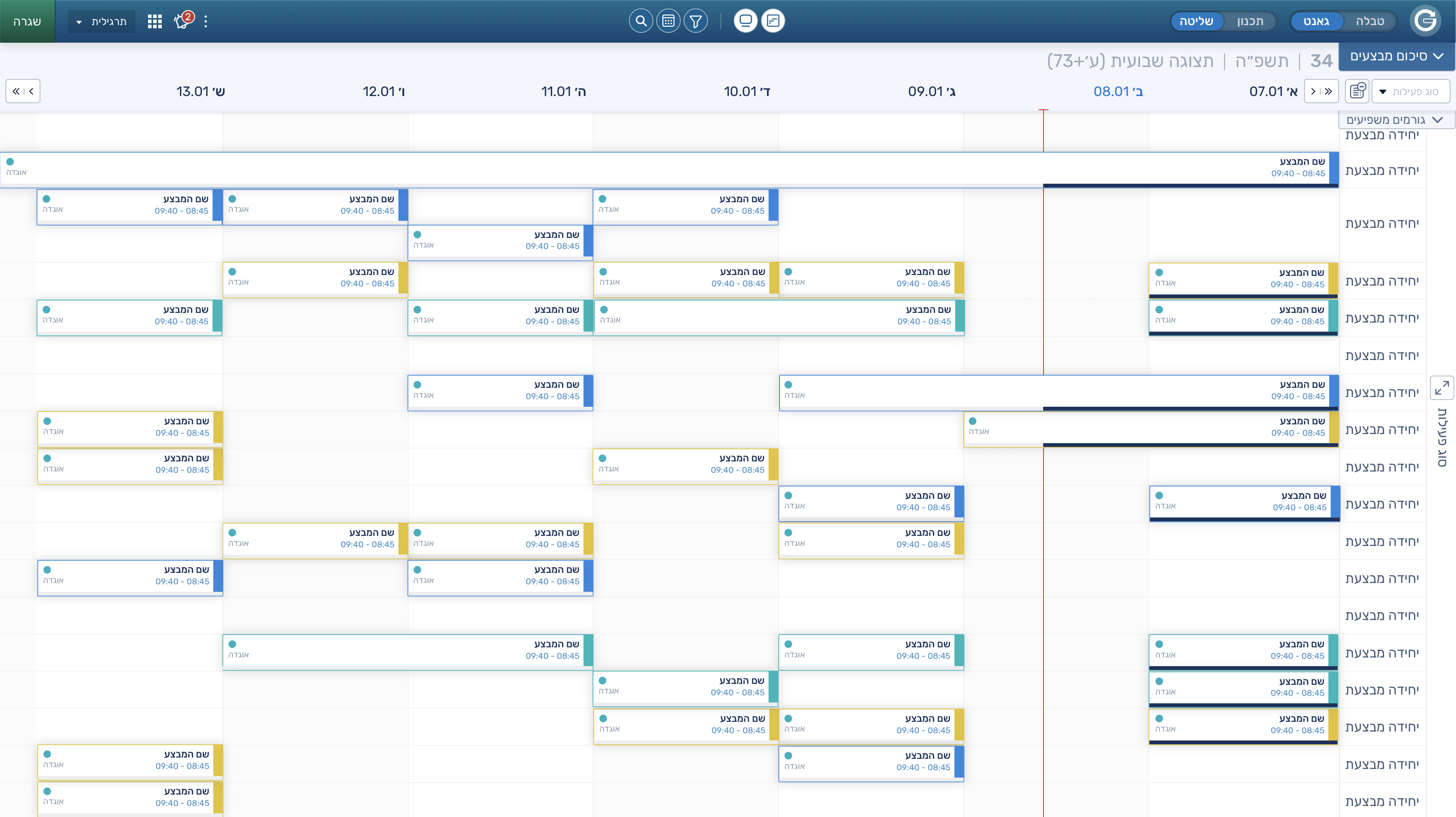
I created a Gantt system that included tasks with subtasks beneath them. Since the subtasks could vary in size and importance, I differentiated their visual appearance to make them easier to distinguish.
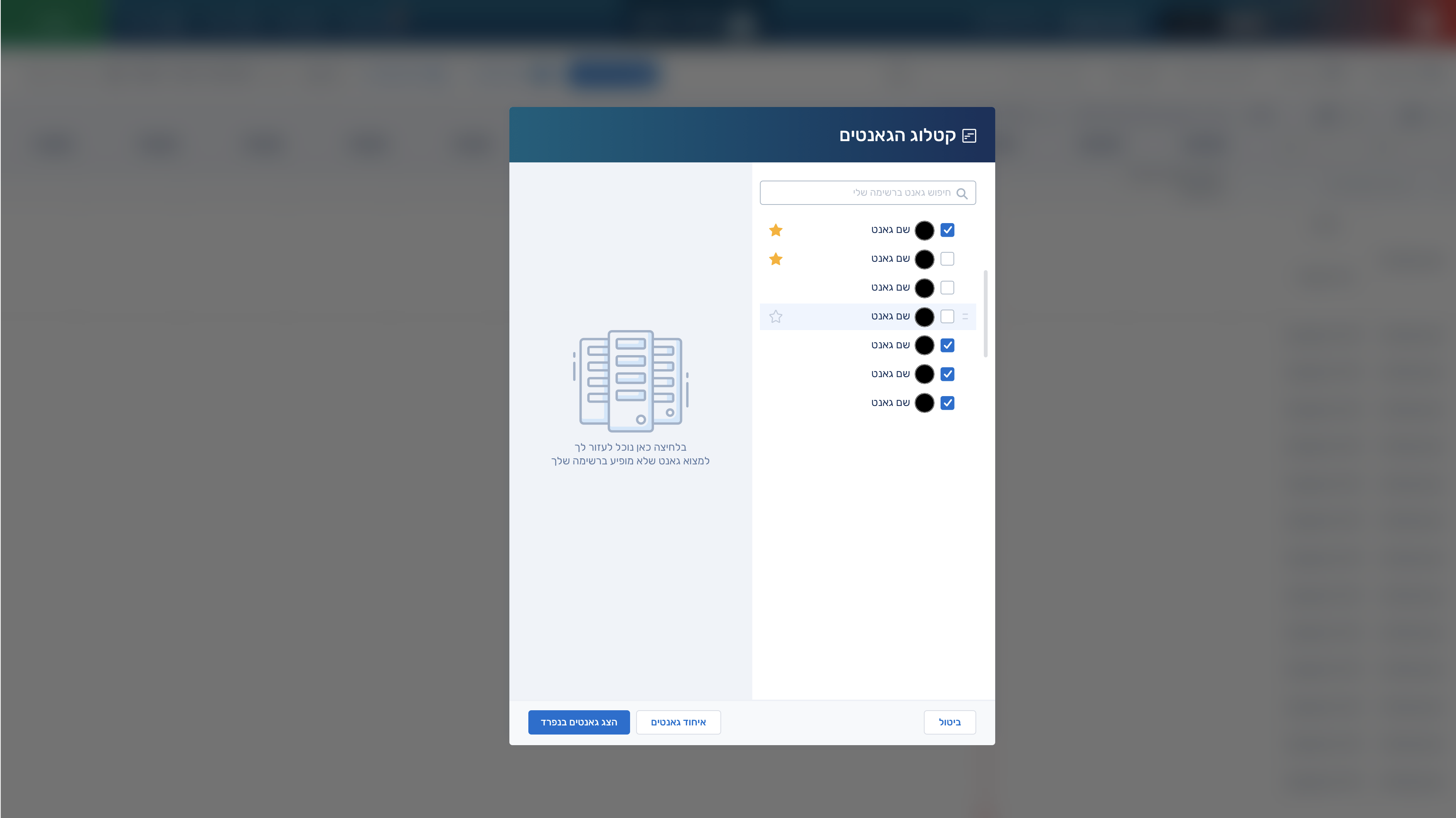
Here, I wanted to create a Gantt catalog that displays Gantt charts outside of the user’s own parent Gantt. This allows users to compare different Gantt charts or merge them together with their parent Gantt.
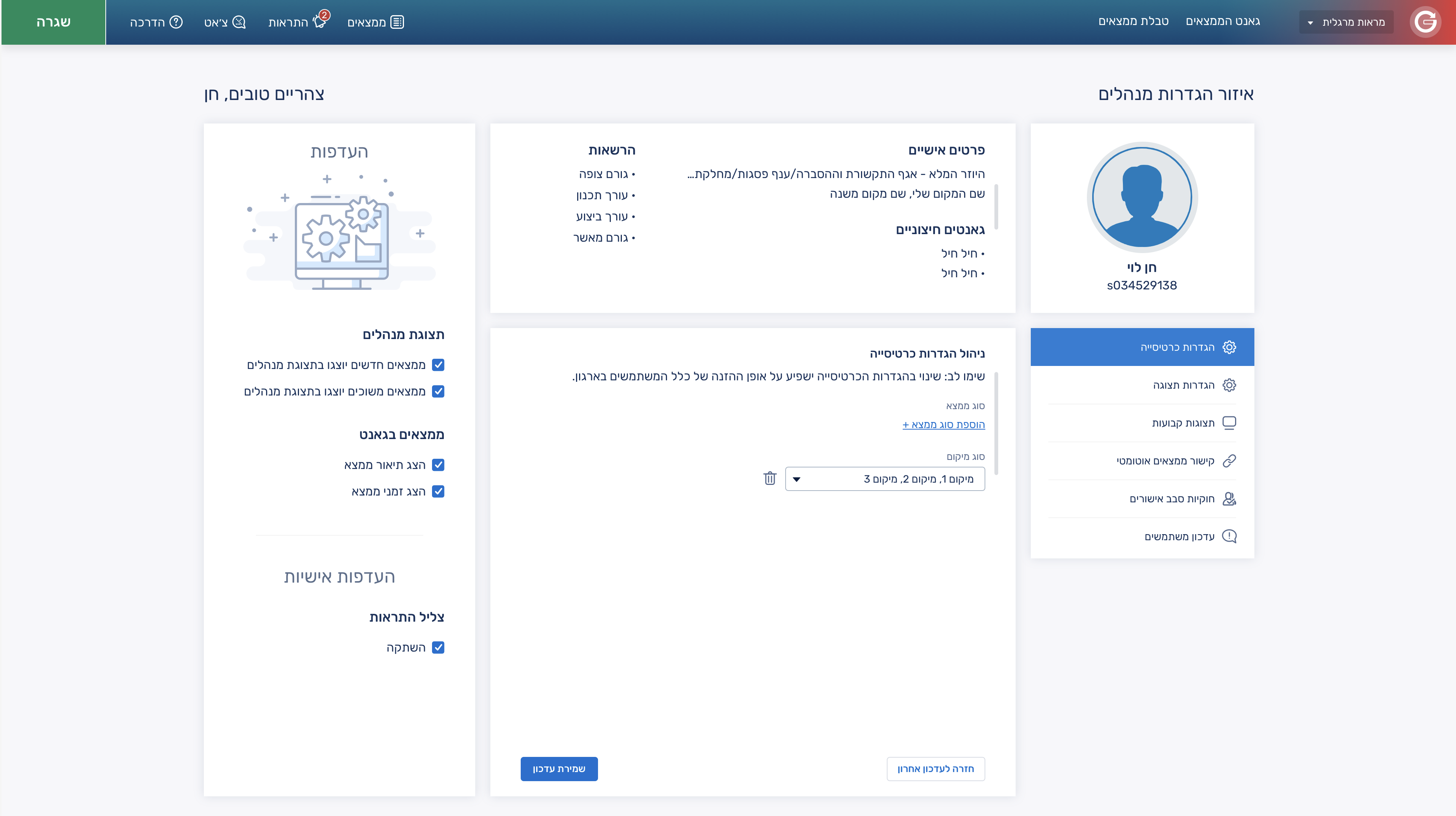
The personal area, also called the admin settings area, is a section where users can manage both the system settings and the properties of their parent Gantt. It also includes user details, display preferences, and system control settings.
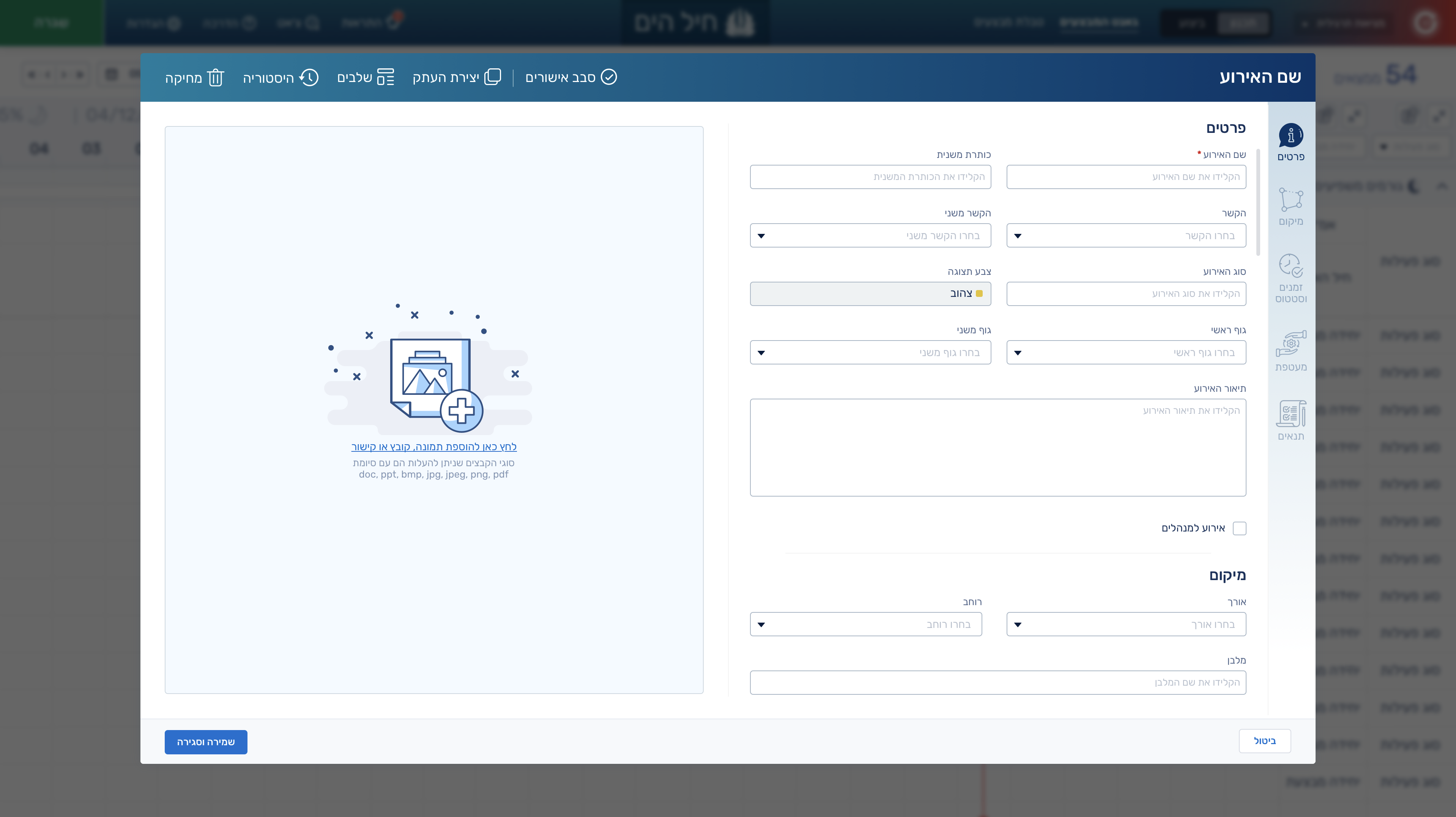
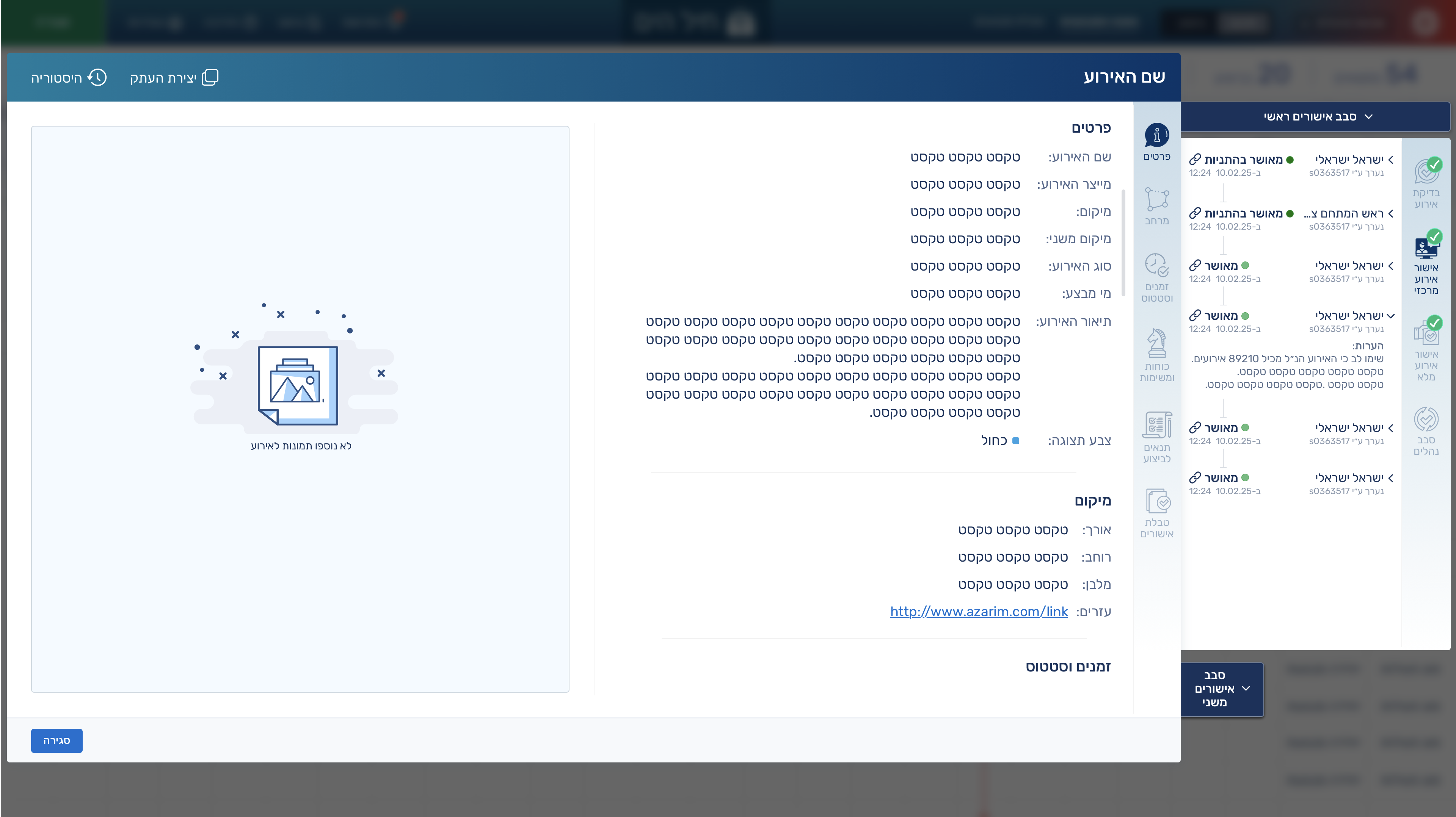
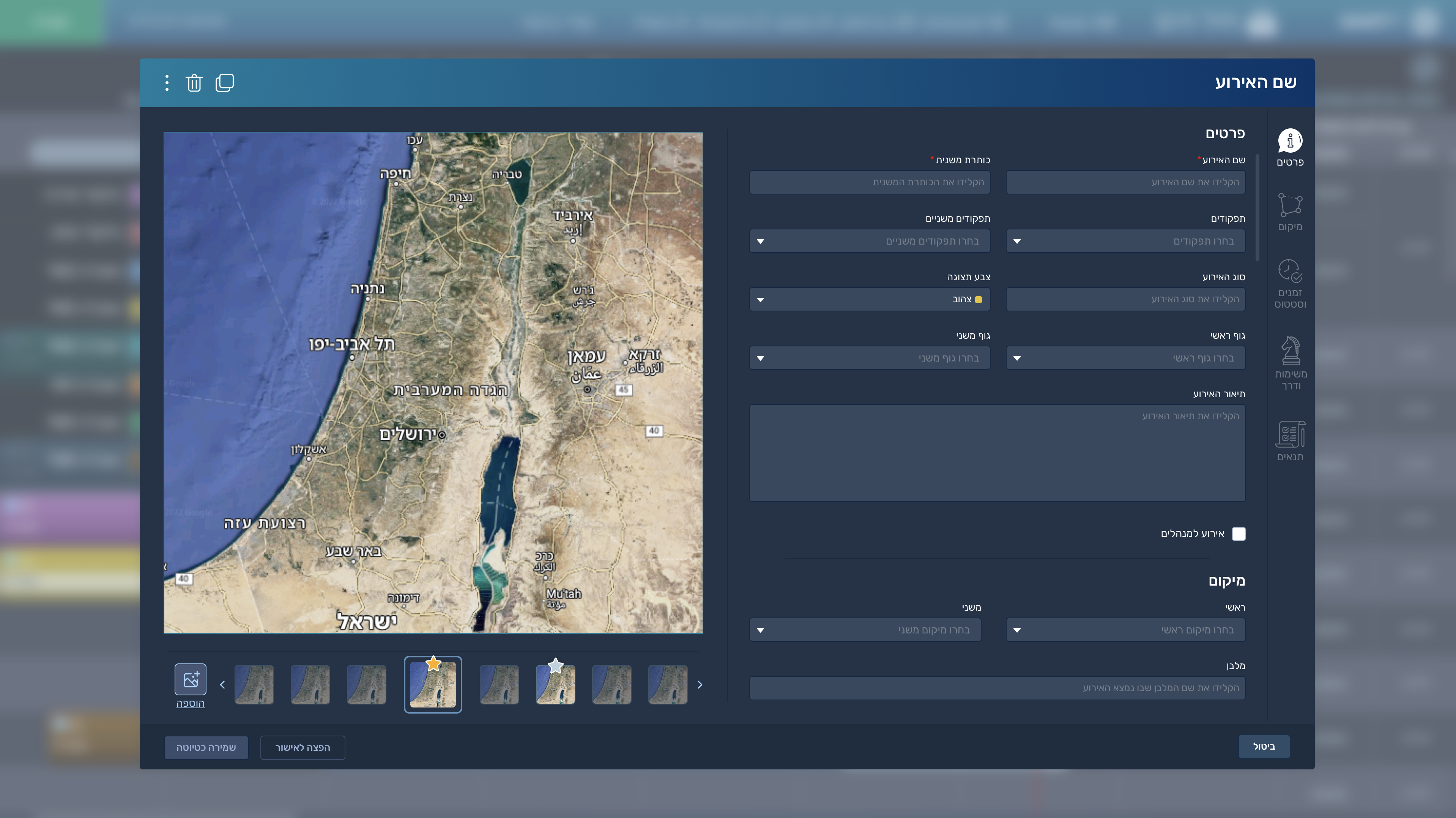
The task card is a type of popup that contains all the task details in a very detailed way. Based on this information, the system determines where and how the task will appear in both the Gantt view and the table view.
After the task is fully detailed, it can be sent for approval to multiple approvers. Because of this, I created a component within the task card that shows who approved the task and, if it was not approved, the reason why.
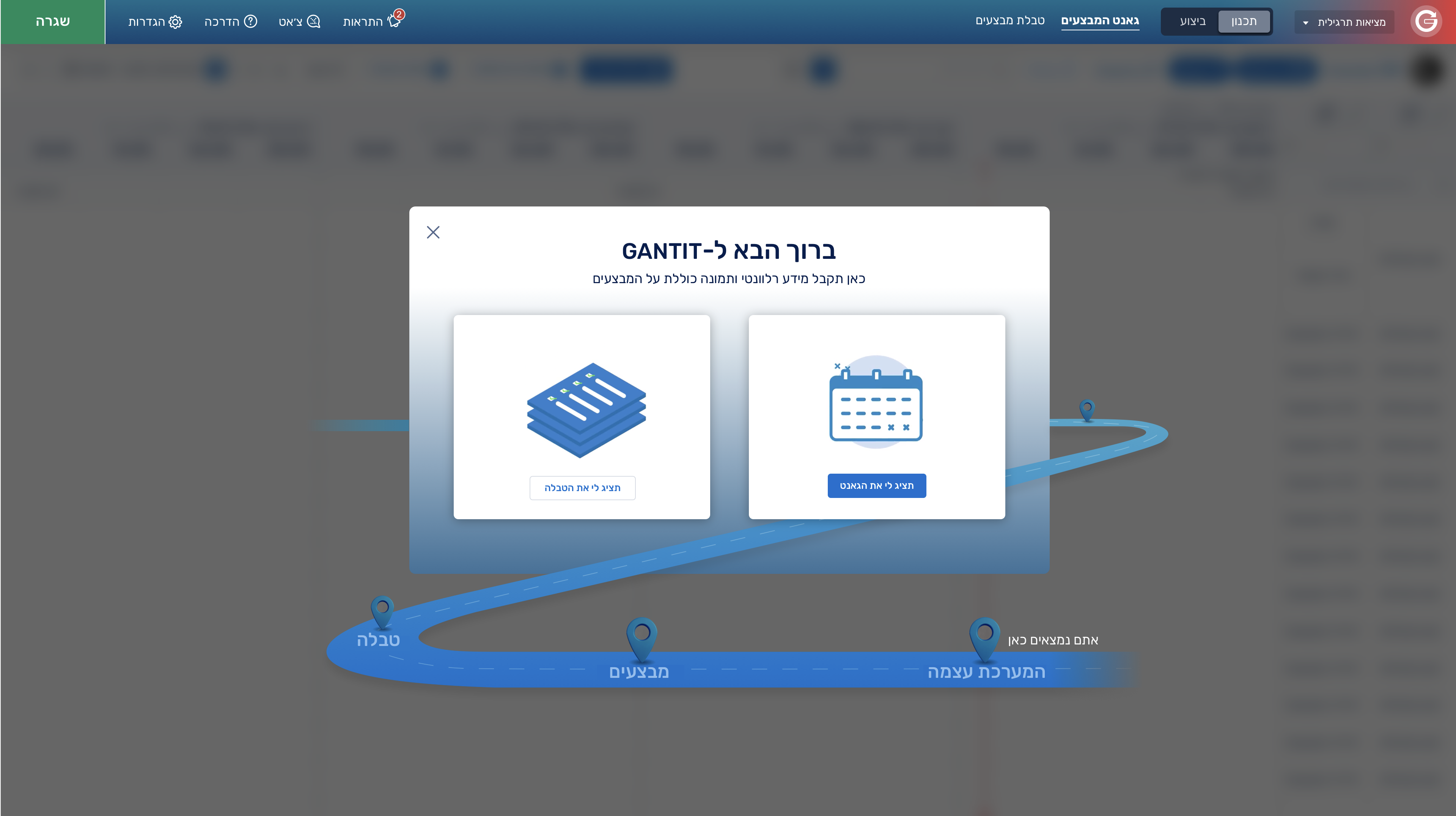
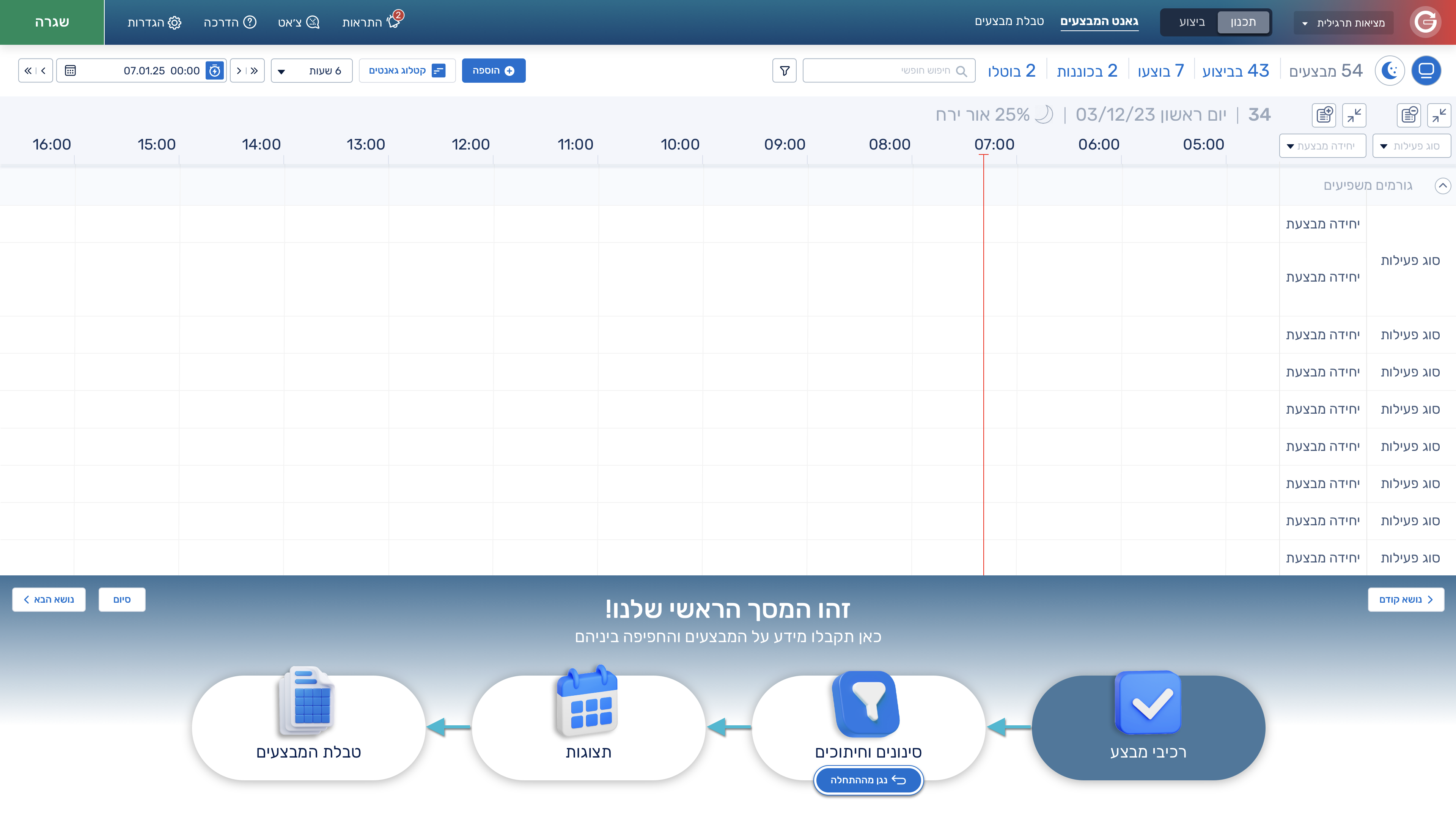
In the onboarding process, I created a welcome screen that invites users to go through a quick and basic tutorial covering the most important areas of the system.
This way, when users enter the tutorial, they are guided through the system area by area based on importance, while the system explains how to use its basic functionalities. More advanced users can then explore and use the advanced features on their own without needing additional guidance.
I also created a new version of the system that simplifies the experience, mainly by streamlining its tools and reducing UI density. This allows users to work more efficiently with fewer distracting elements.
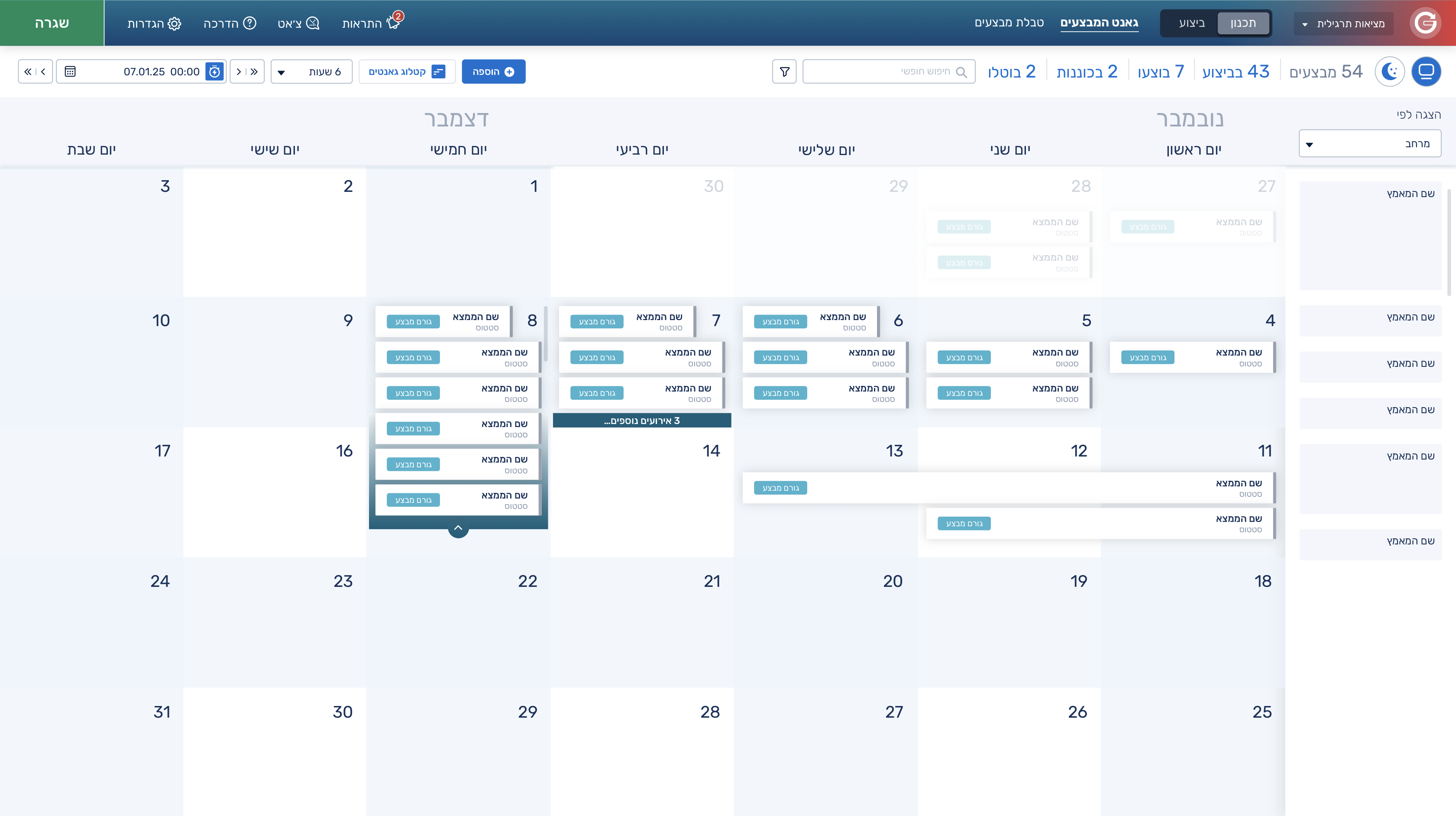
I also introduced a concept for a new monthly Gantt view that presents events and tasks in a cleaner, less cluttered, and more visually pleasant way.
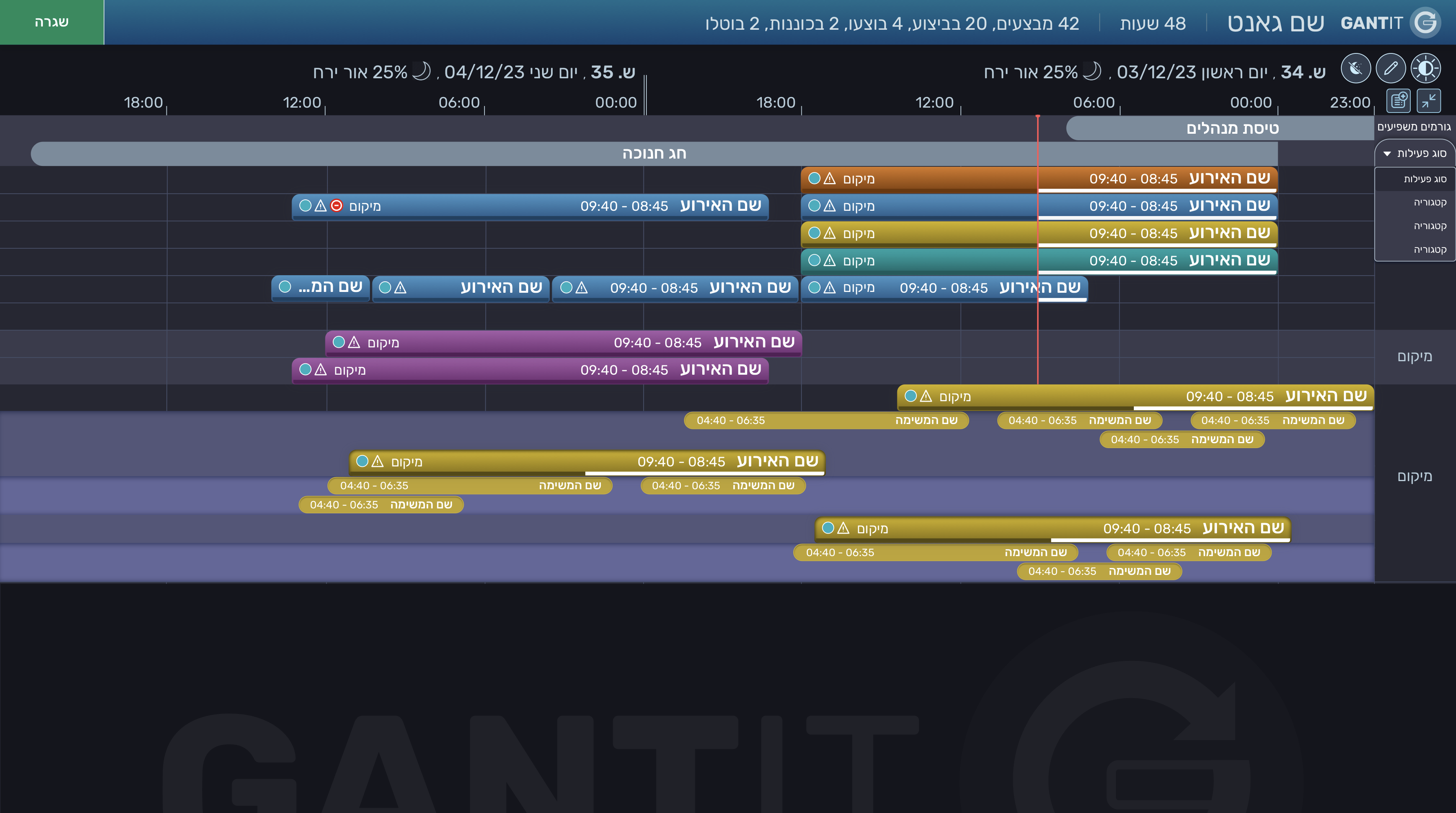
In the dark mode version, which was designed mainly for managers’ needs, I simplified the system even further since it was intended primarily for viewing purposes. Users of this version requested fully colored events so they could quickly identify what was relevant to them and what was less important, while still keeping everything visible at a glance.
In the task card within the dark mode version, we kept all the existing values and designed it using user-friendly colors instead of pure black, which can be harsh on the eyes. That’s why I chose shades of blue and gray to create a more comfortable viewing experience.